RDBASE mobile version · walkthrough
Documenting an SR&ED project on your phone, screen by screen
Eleven steps, from setting up the company to sending the draft description to your SR&ED consultant. The example follows ABC Inc., a machine shop trying to mill thin-wall aluminium housings without chatter.
Everything shown is sample data. ABC Inc., its people and its project are invented. The guidance answers in steps 4, 6, 8 and 9 are illustrations of the kind of answer you get; real answers are written fresh from your own entries and will differ.
Before you start
- On your phone, open rdbase.ca and tap Start here, then Set up mobile version.
- Sign in with your Claude account. A free account is enough.
- To keep it on your home screen, open the browser menu and choose Add to Home screen.
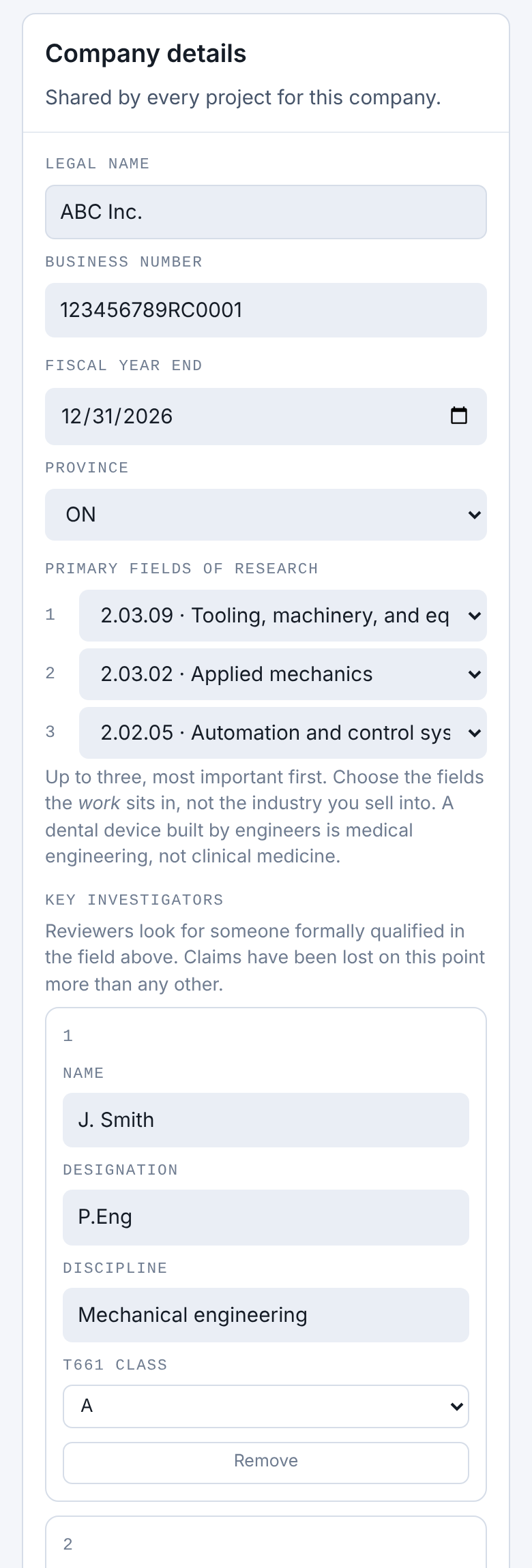
Company details
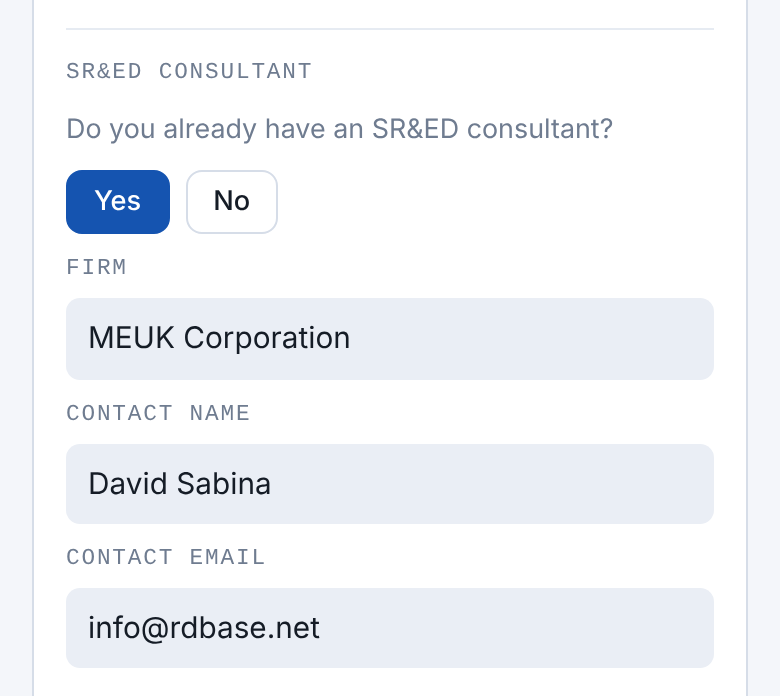
The consultant question, lower on the same screen
STEP 1
Set up the company
This screen appears once, the first time you open the mobile version. Every project you add afterwards uses it. Only the legal name and fiscal year end are required to continue.
- Legal name
- ABC Inc.
- Fiscal year end
- 31 December 2026
- Province
- ON
- Fields of research
- 1. Tooling, machinery and equipment engineering (2.03.09)
2. Applied mechanics (2.03.02)
3. Automation and control systems (2.02.05) - Investigators
- J. Smith, P.Eng, mechanical engineering, class A
R. Lee, CET, mechatronics, class B - Consultant
- Yes: MEUK Corporation, David Sabina
The last question asks whether you already have an SR&ED consultant. Answer Yes and enter the firm, contact and email, or No and choose whether you would like a suggestion. If you choose Not now it stays empty, and you are asked again once a project reaches a strength of 8 out of 10.
Pick up to three fields, most important first, for the work itself and not the industry you sell into. Tap Company details at any time to change them.
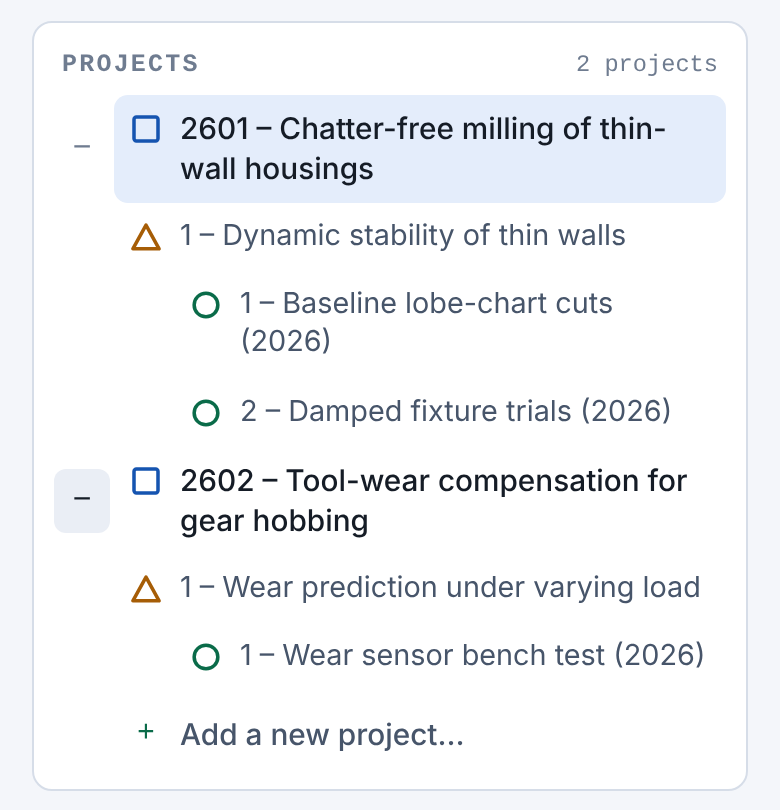
Projects panel
STEP 2
Open a project, or add one
The Projects panel lists every project as a square. Under each sits its technological uncertainty as a triangle, and under that the activities for each year as circles. Tap any line to go straight to that screen.
Tap Add a new project to start another. It is numbered for you: the first two digits are the year the work began and the last two are the sequence, so ABC's first two projects of 2026 are 2601 and 2602.
The project number and title sit at the top of the screen and can be edited there.
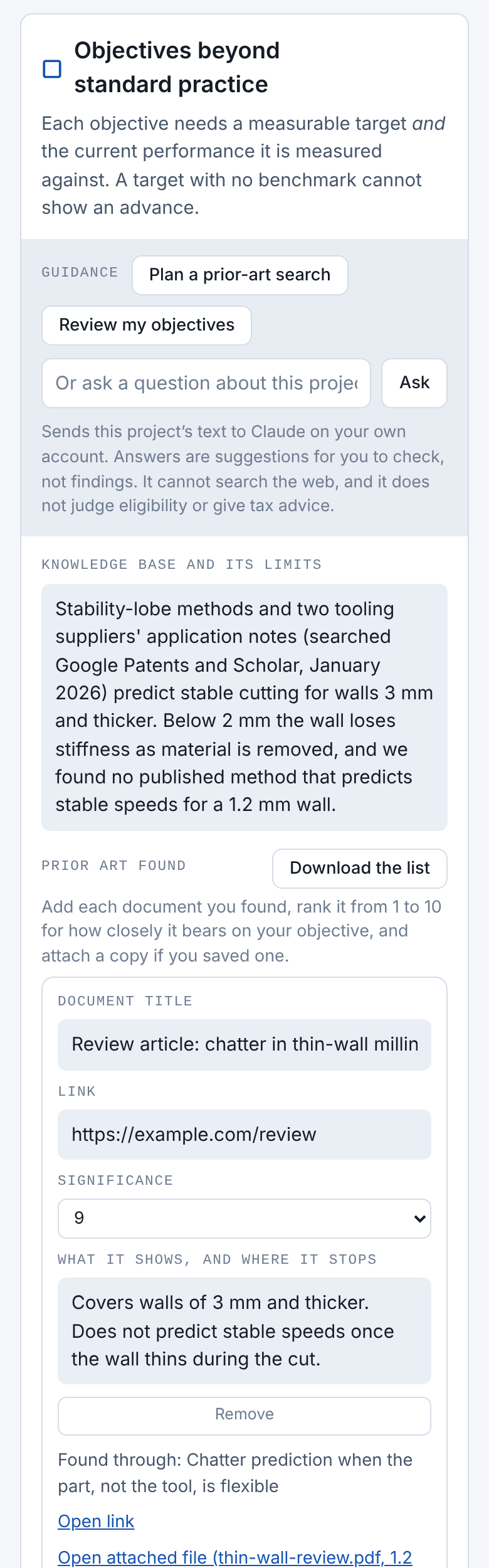
Objectives
STEP 3
Objectives: what you set out to achieve
Start with what was already known and where it ran out. Then state the objective in plain words, and add one row for each thing you can measure.
- Knowledge base
- Published methods predict stable cutting for walls 3 mm and thicker. Nothing found for a 1.2 mm wall.
- Objective
- Machine 1.2 mm housings in one setup without chatter marks.
- Measurement 1
- Minimum wall thickness: 2.0 mm now, 1.2 mm target
- Measurement 2
- Surface roughness Ra: 3.2 µm now, 0.8 µm target
Every measurement needs both a current performance and a target. A target with nothing to compare against cannot show an advance.
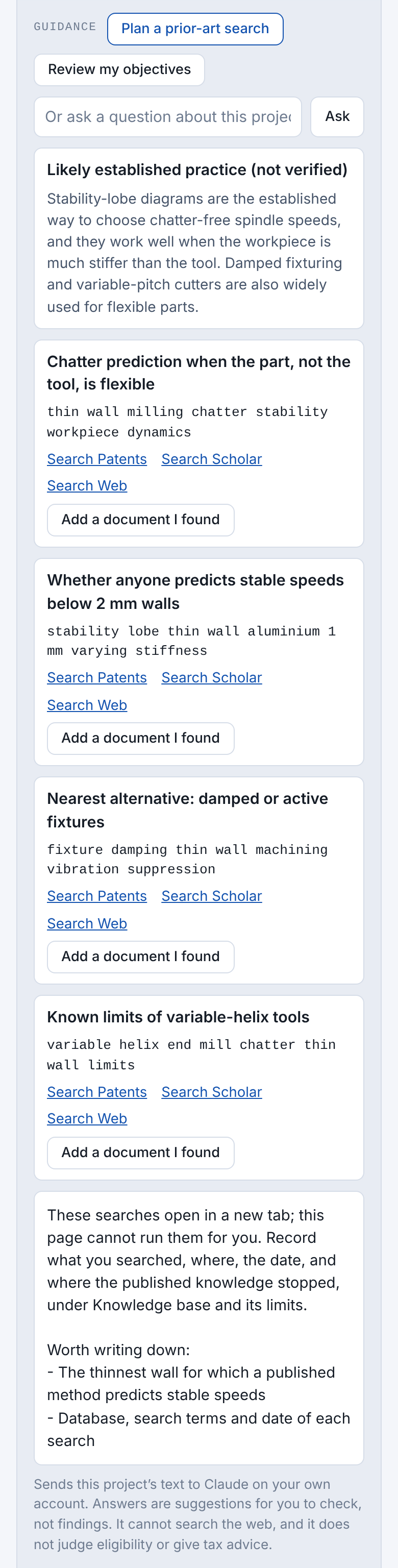
Guidance: prior-art search plan
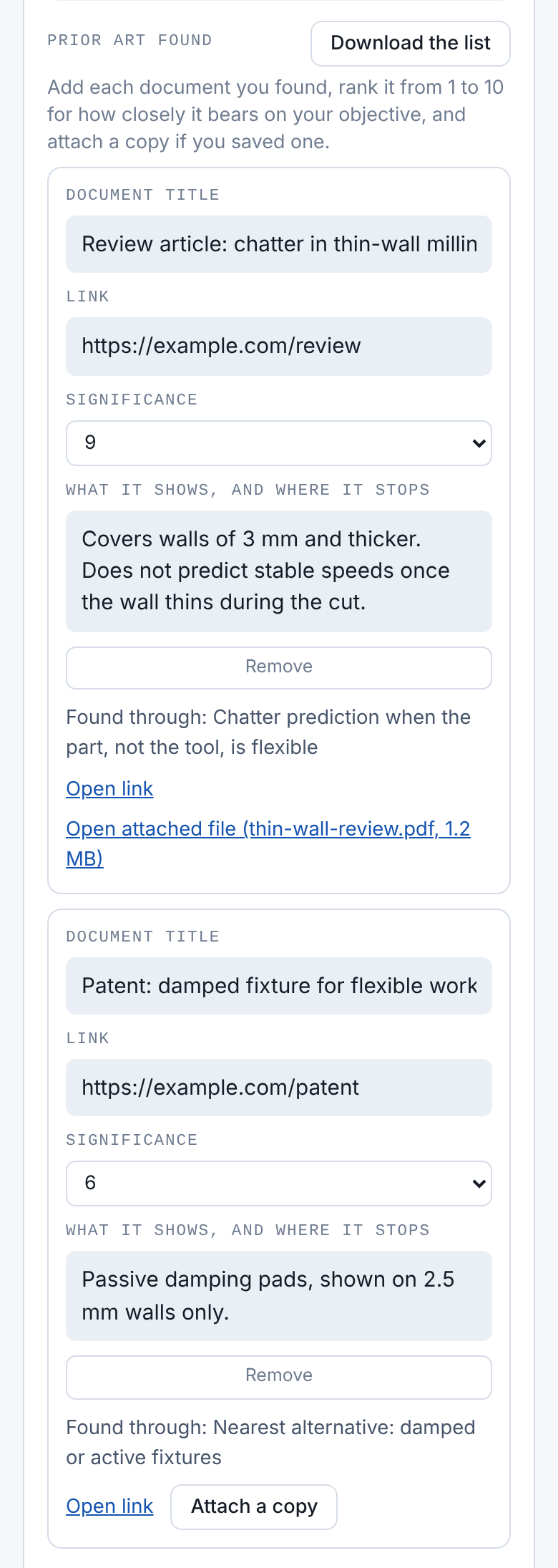
Prior art found, ranked
STEP 4
Plan the prior-art search
On the Objectives screen, tap Plan a prior-art search. Guidance reads what you have entered and drafts four to six searches, each with links that open Google Patents, Google Scholar or a web search with the terms filled in.
When a search turns up something relevant, tap Add a document I found. Paste its title and link, rank its significance from 1 to 10, note what it shows and where it stops, and attach a copy if you saved the PDF. The list sorts itself with the most significant first, and Download the list saves it as a spreadsheet for discussion.
Then write what you searched, where, the date and where the published knowledge stopped into Knowledge base and its limits.
Guidance cannot search the web itself, and the "likely established practice" note is unverified. The searches are yours to run and record.
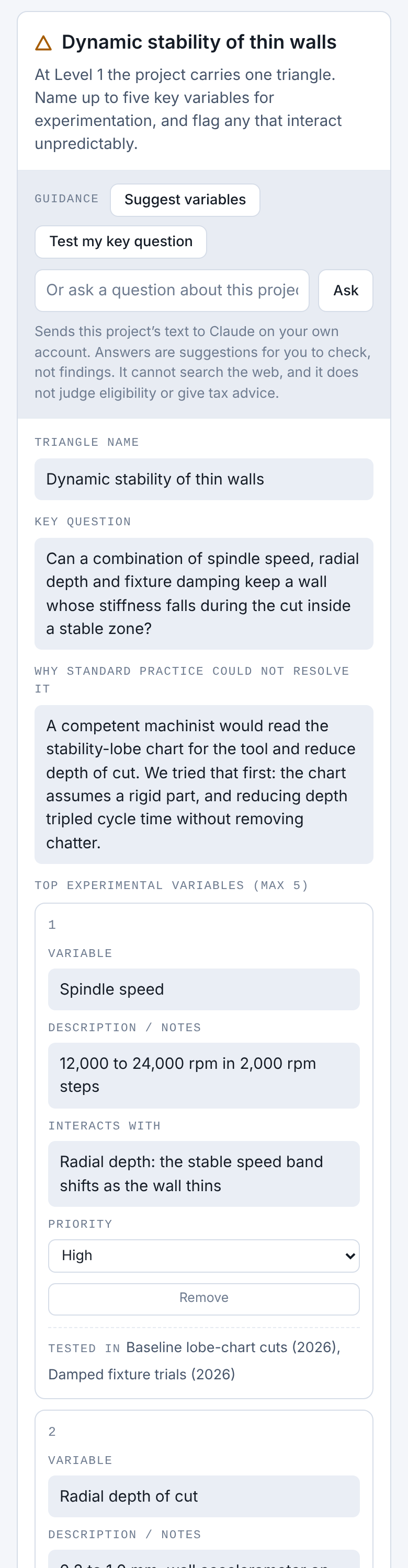
Uncertainties
STEP 5
Uncertainties: what you could not predict
State the unknown as a question, say why standard practice could not answer it, and list up to five variables you will change and measure.
- Key question
- Can spindle speed, radial depth and fixture damping together keep a wall that loses stiffness during the cut inside a stable zone?
- Why not standard
- The stability-lobe chart assumes a rigid part. Reducing depth of cut tripled cycle time and the chatter remained.
- Variables
- Spindle speed (12,000 to 24,000 rpm)
Radial depth of cut (0.2 to 1.0 mm)
Fixture damping (none, pads, vacuum plus pads)
Where changing one variable shifts another unpredictably, say so under Interacts with. Each variable also shows which experiments test it.
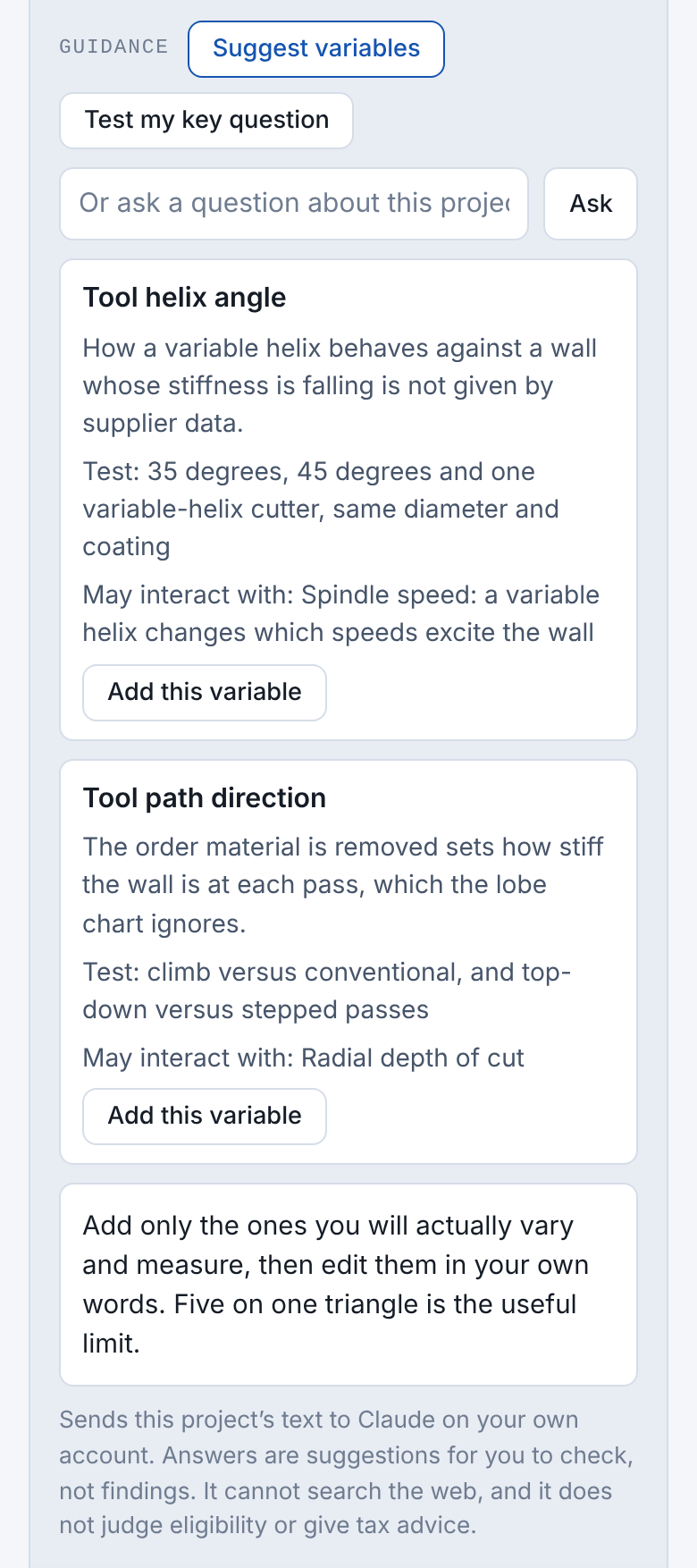
Guidance: suggested variables
STEP 6
Ask for variables you may have missed
Tap Suggest variables. Each suggestion says why its effect is hard to predict, what range to test and what it may interact with. Tap Add this variable to put it on the list, then edit it in your own words.
Test my key question checks whether the question reads as a technological uncertainty or as routine engineering, and offers a sharper wording.
Add only the variables you will really vary and measure. Five on one uncertainty is the useful limit.
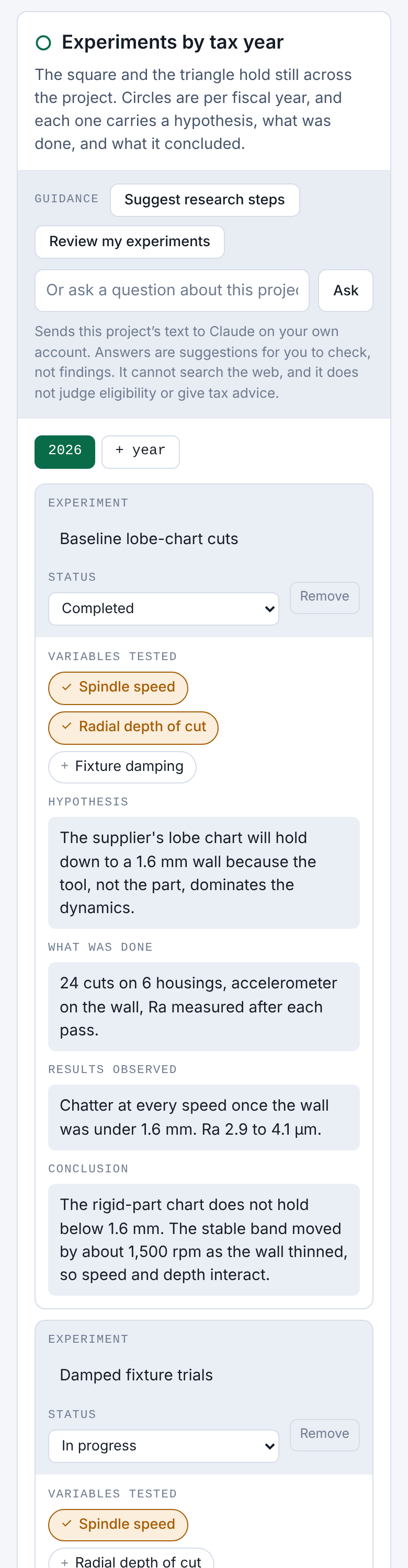
Experiments for 2026
STEP 7
Experiments: what you did each year
Pick the fiscal year, then add one entry per experiment. Tap the variables it tested, and fill in the hypothesis before the work and the results and conclusion after it.
- Experiment
- Baseline lobe-chart cuts (completed)
- Variables
- Spindle speed, radial depth of cut
- What was done
- 24 cuts on 6 housings, accelerometer on the wall
- Results
- Chatter at every speed below a 1.6 mm wall
- Conclusion
- The rigid-part chart does not hold below 1.6 mm; speed and depth interact
A failed attempt is still an experiment. Record what it settled.
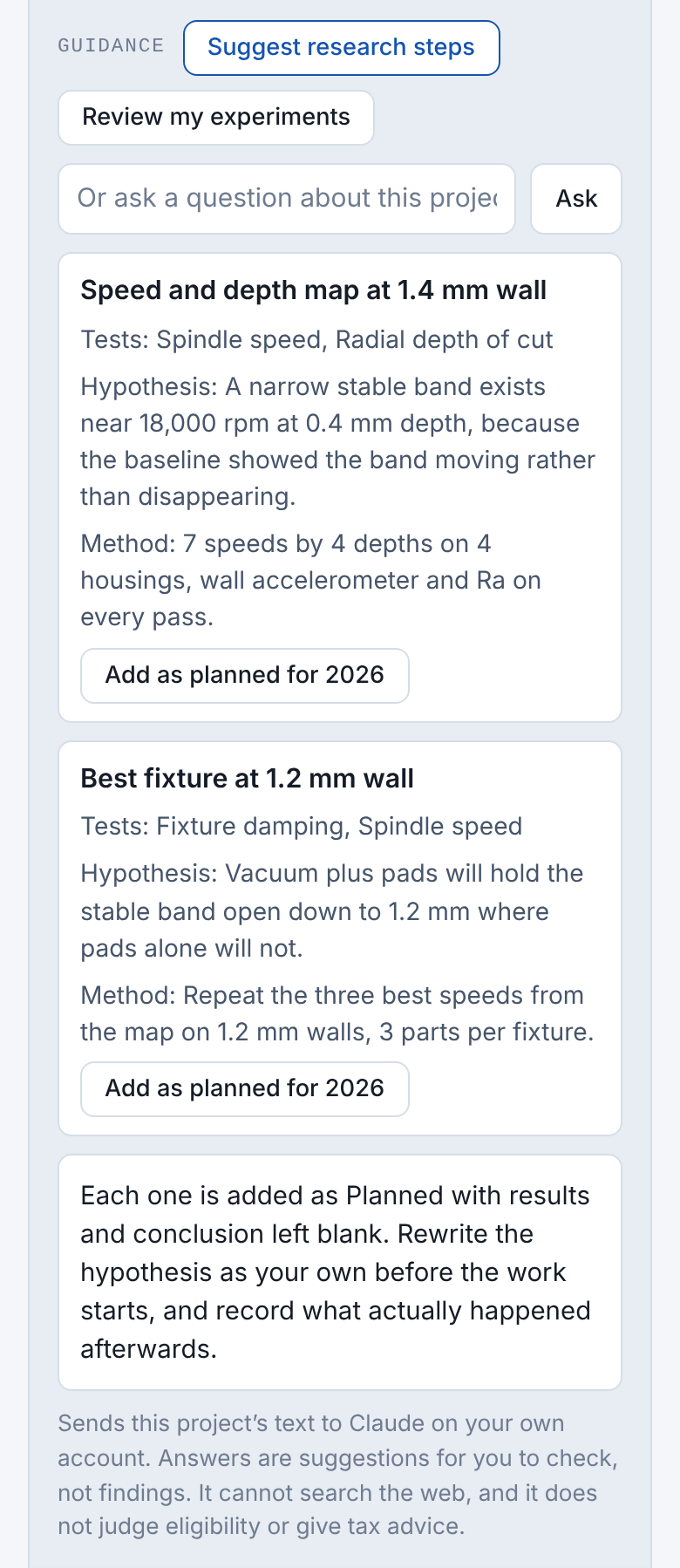
Guidance: suggested research steps
STEP 8
Ask what to test next
Tap Suggest research steps. Guidance proposes experiments that follow from the variables and from what earlier experiments concluded. Add as planned creates the entry with status Planned, linked to its variables, and leaves results and conclusion blank.
Rewrite the hypothesis as your own before the work starts. Guidance proposes future work only; it never fills in what happened.
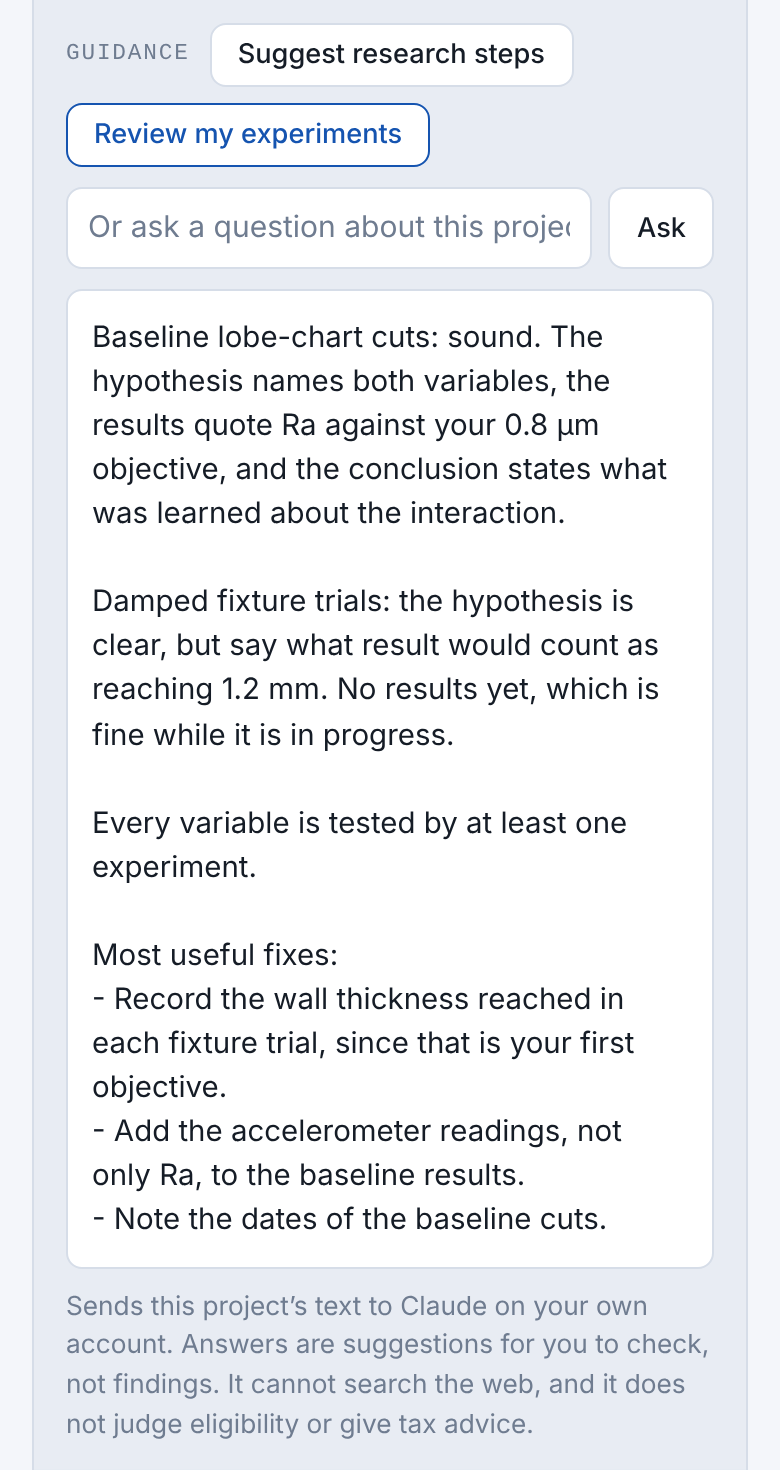
Guidance: review
STEP 9
Have the record reviewed
Each screen has a review button. Review my experiments checks that every hypothesis names its variable, that results refer back to the objectives and that conclusions say what was learned, then lists the most useful fixes.
You can also type a question of your own in the box, such as "Is my second objective measurable?"
Reviews point out what a reviewer is likely to question. They do not decide whether the work is eligible.
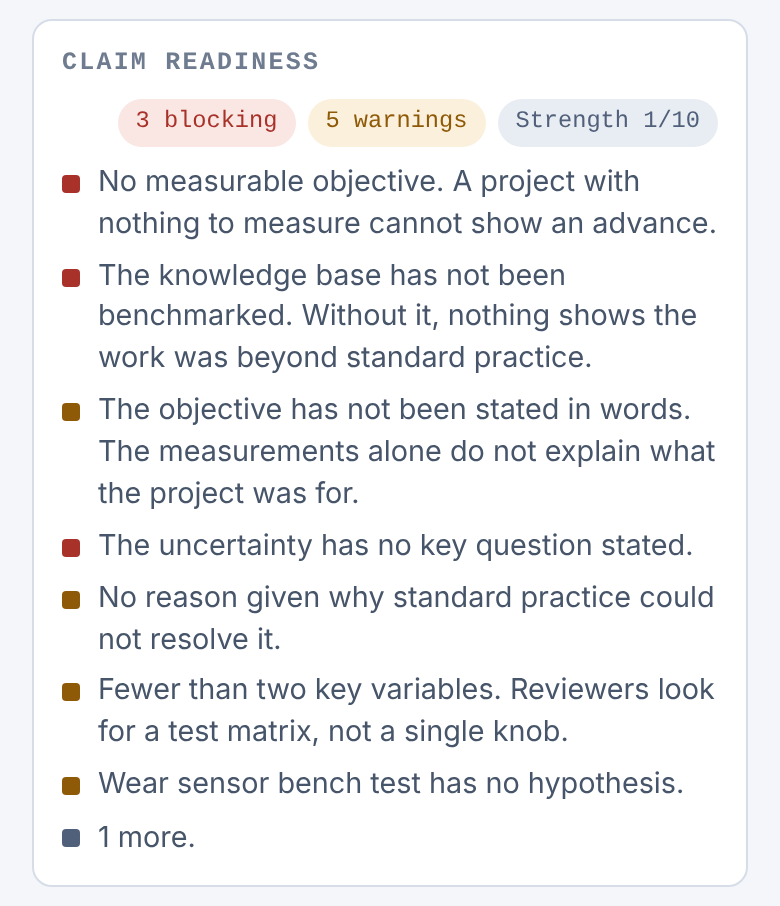
Project 2602, just started
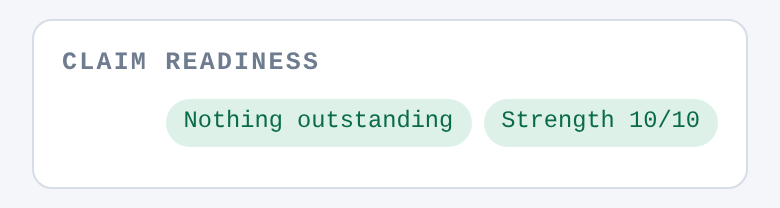
Project 2601, record complete
STEP 10
Check claim readiness
The Claim readiness panel sits above the three screens and updates as you type. Red items block a complete record, amber items are warnings. Tap any line to jump to the field that needs attention.
The panel also gives the record a strength out of 10. It starts at 10 and loses 2 for each blocking item and 1 for each warning. At 8 or higher, if no consultant is on file, it offers to help you choose one.
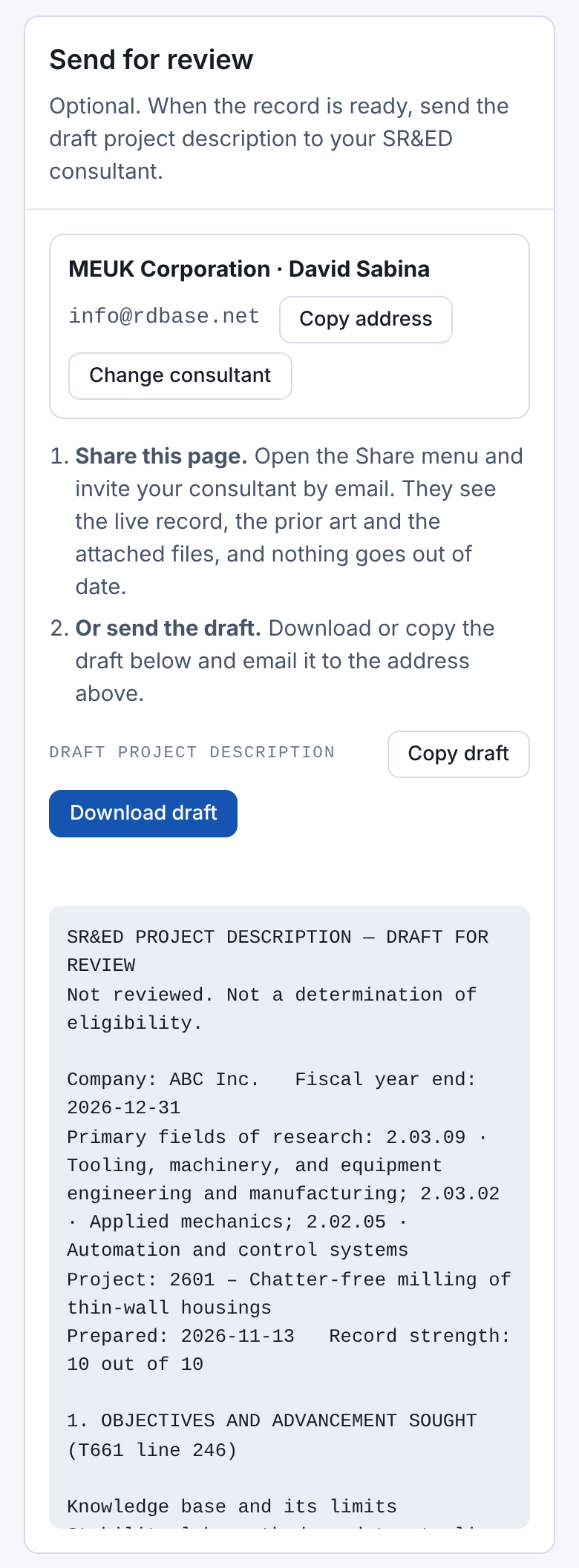
Send for review
STEP 11 · OPTIONAL
Send the draft to your SR&ED consultant
When you are ready, tap Send for review. The screen shows your consultant's contact and assembles a draft project description from everything you have entered: objectives, prior art, uncertainties, work by year, people, files and anything still outstanding.
There are two ways to send it. Share this page from the Share menu so the consultant sees the live record and the attached files. Or tap Download draft or Copy draft and email it to the address shown.
The draft is marked as not reviewed. Your consultant decides what goes into the claim.
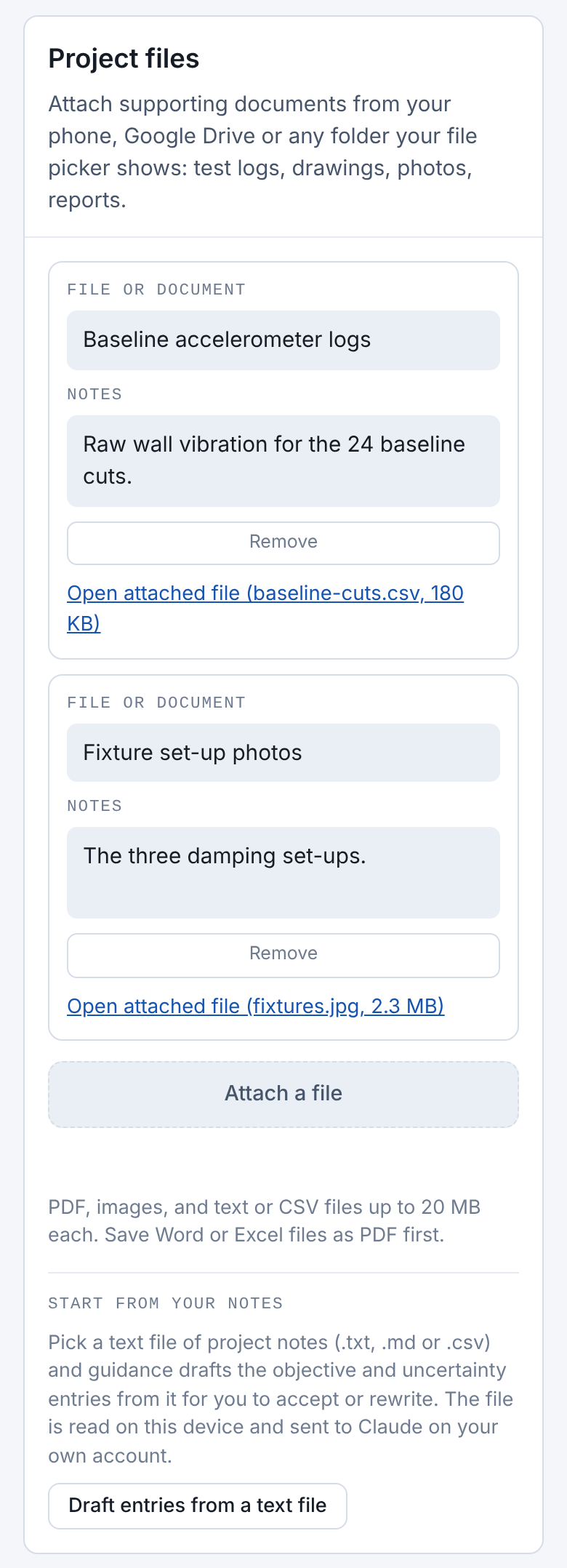
Files
AT ANY STEP
Attach files, or speak instead of typing
Files. Tap Files, then Attach a file. Your phone's file picker opens, including Google Drive, Downloads and photos. PDFs, images, and text or CSV files up to 20 MB can be attached; save Word or Excel files as PDF first.
Start from your notes. If you already have project notes in a text file, Draft entries from a text file reads them and proposes the objective and uncertainty entries for you to accept or rewrite.
Voice. Tap a field, then tap Dictate at the bottom right and speak; tap again to stop. The microphone key on your phone's keyboard also works in every field.
The Dictate button appears in Chrome on your phone. Inside the Claude app, use the keyboard microphone.